
Installing from Atlassian Marketplace within JIRA
-
Login to JIRA as a system administrator, then click the "COG" icon in the top right corner of the page and select "Add-ons"
-
Select "Add-ons" from the administration menu
-
In the "Find new add-ons" page, search for synapseRT NextGen
-
If you would like to try the add-on before your purchase, click the "Free Trial" option to generate a 30-day trial license, otherwise click "Buy Now"

[Screenshot - IN0001_Install_from_Atlassian_Marketplace_within_JIRA]
Installing from an installation file
-
Login to JIRA as a system administrator, then click the "COG" icon in the top right corner of the page and select "Add-ons"
-
Select "Add-ons" from the administration menu, then click the “Manage add-ons” link from the left panel
-
Click the “Upload add-on” button, browse to installation file (.jar file), and click the “Upload” button
-
It will take a while to finish the installation
-
Once installation is complete, you will need to add a license key to activate it
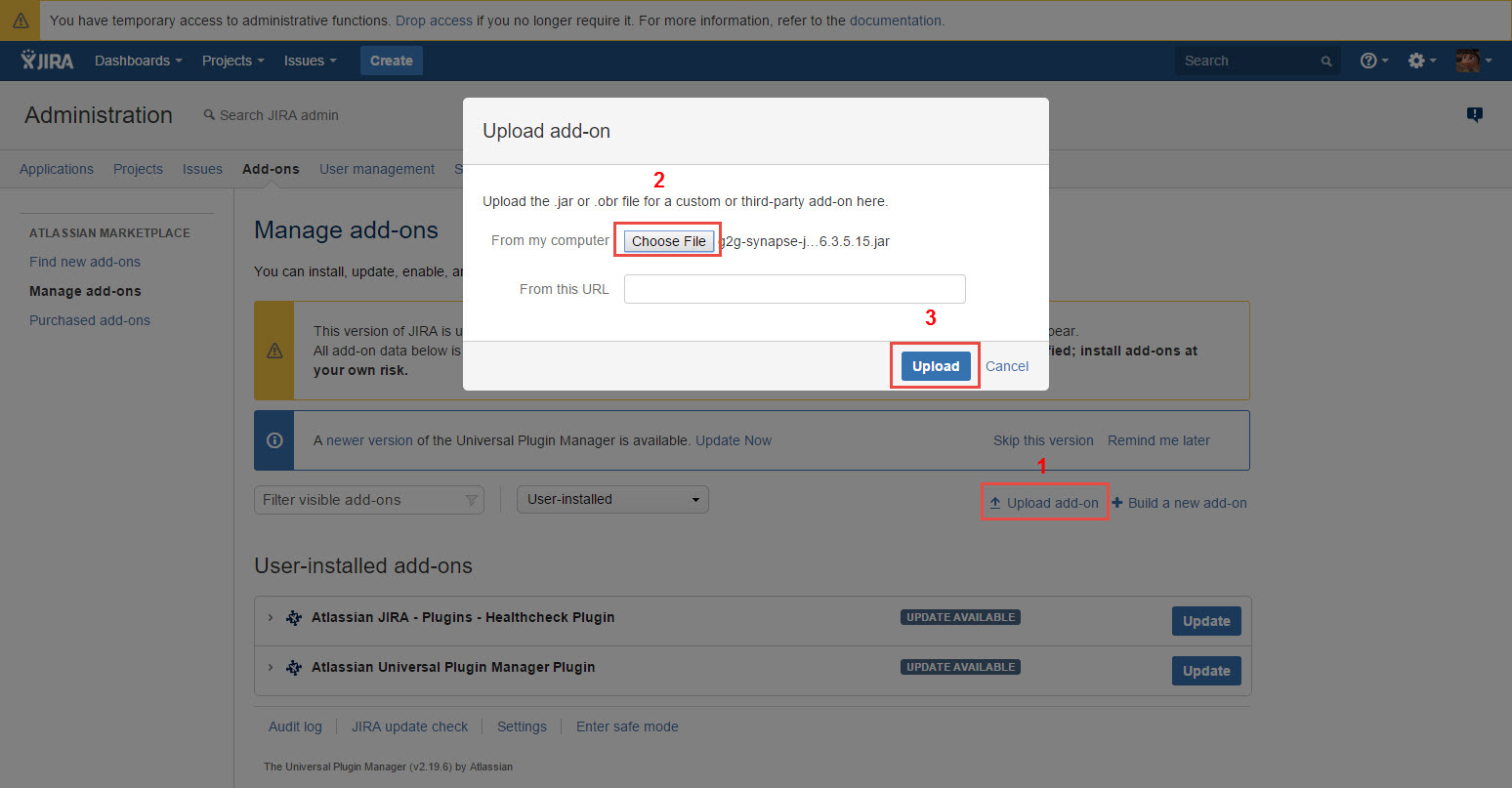
[Screenshot - IN0002_Install_from_an_Installation_File]
Add license key
-
Login to JIRA as a system administrator, then click the "COG" icon in the top right corner of the page and select "Add-ons"
-
Select "Add-ons" from the administration menu, then click the “Manage add-ons” link from the left panel
-
Find the synapseRT NextGen add-on from the list, then click it
-
Click the “Pencil” icon and paste the license key
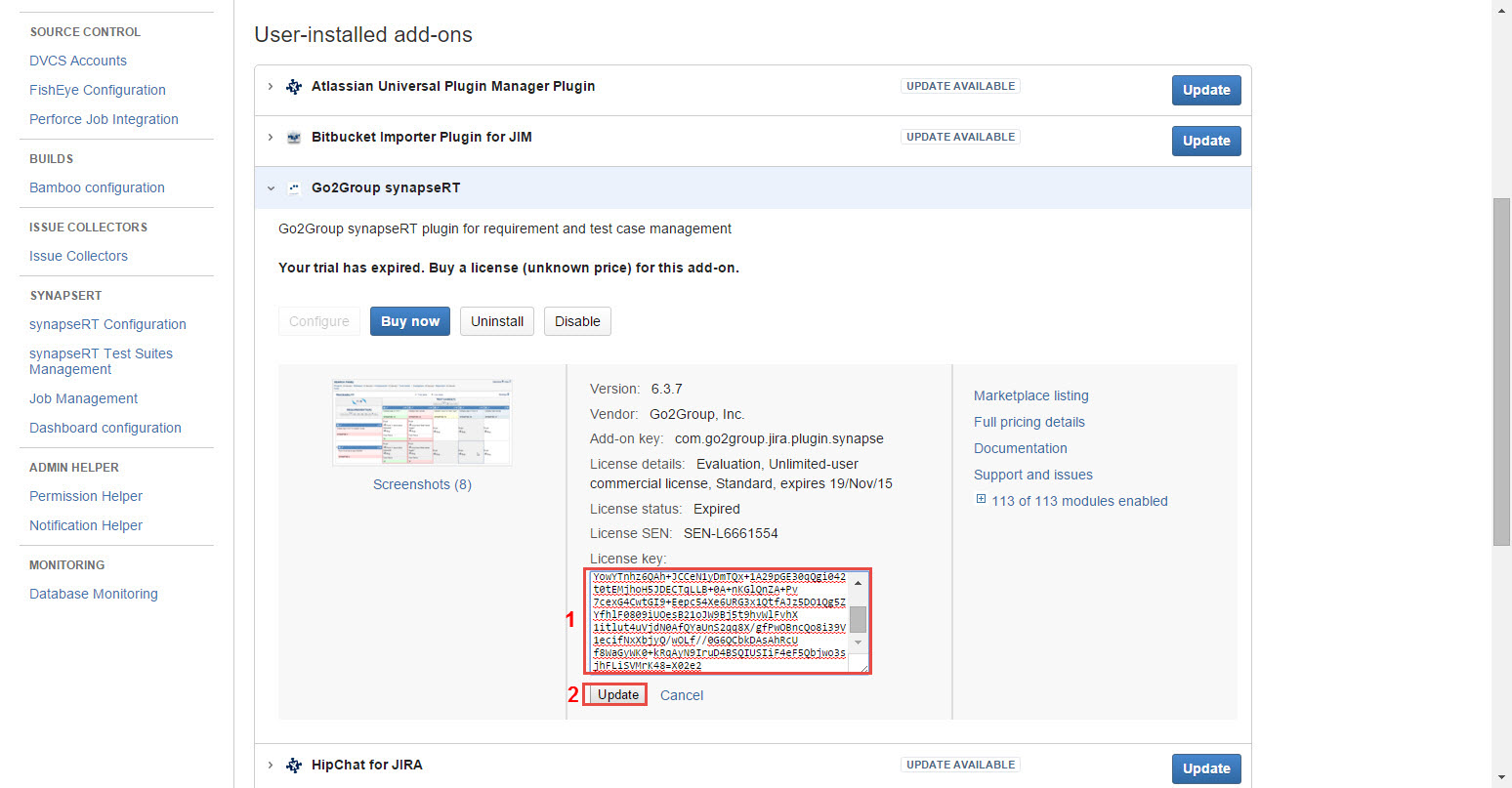
[Screenshot - IN0003_Add_License_Key]