
You can either update test step result one-by-one, or bulk update all steps result by one click.
Update test step result one-by-one:
-
Launch a test cycle
-
Click the "Execute" button to open the "Test Case Run" dialog
-
In the "Run Steps" section, click the "Pencil" icon from the "Result" column for any step
-
Select a result from the drop-down list
-
Click the "Close" button to save and close test result, or click "Next" button to save the result and navigate to next test case run.
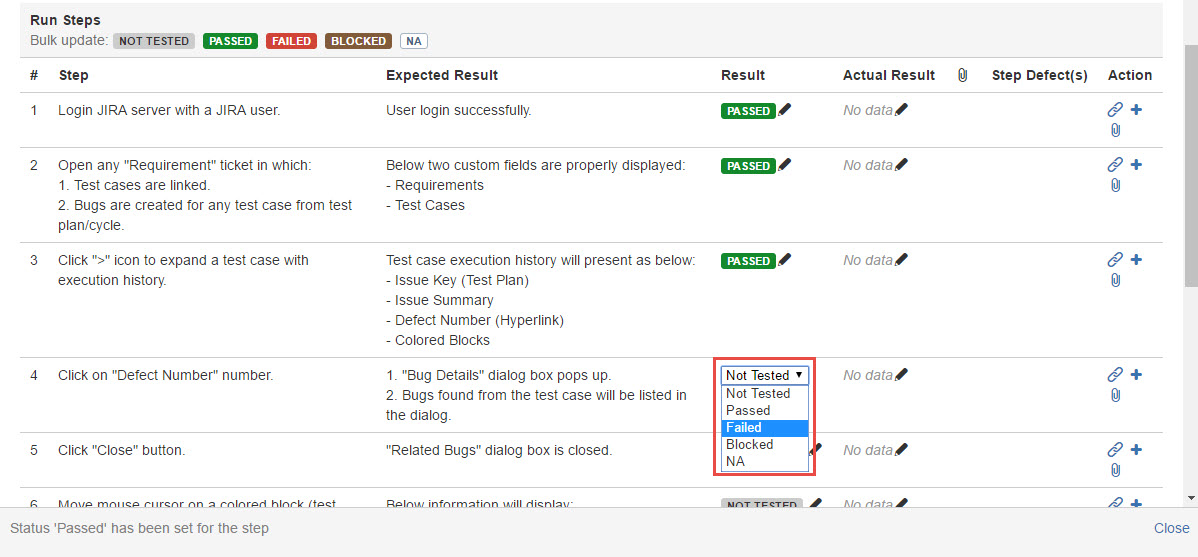
[Screenshot - UG0054_Test_Cycle_Test_Step_Result]
Bulk update test step results by one click:
-
Launch a test cycle
-
Click the "Execute" button to open the "Test Case Run" dialog
-
In the "Run Steps" section, click any of below item to update all test steps to the corresponding result:
- NOT TESTED: set all test steps to "NOT TESTED" status
- PASSED: set all test steps to "PASSED" status
- FAILED: set all test steps to "FAILED" status
- BLOCKED: set all test steps to "BLOCKED" status
- NA: Not Tested, set all test steps to "NA" status -
Click the "Close" button to save and close test result, or click "Next" button to save the result and navigate to next test case run.
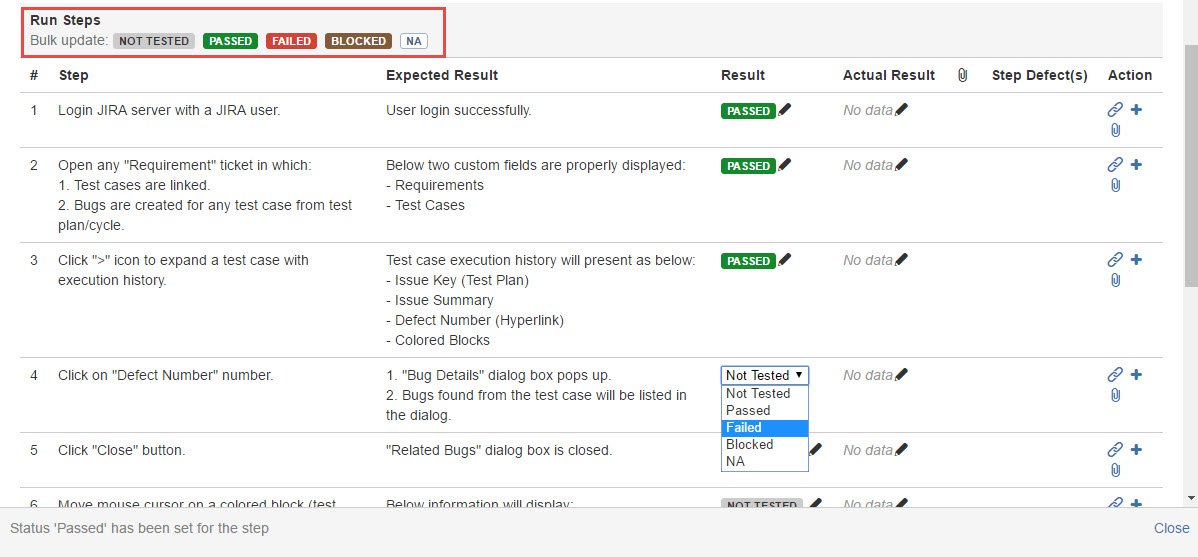
[Screenshot - UG0054A_Test_Cycle_Test_Step_Result]