Each user can do his own user settings from "My Settings" page, user settings can be done from below 4 items:
Preferences
Run Dialog Field Preference
User can add additional Jira fields to Test Run dialog, so that when a Tester is executing a test, he can get the additional Test Case information to help the execution.
Note: if user doesn't configure it from "My Settings" page, the Globe Preferences setting will take effect.
To setup test run preferences, follow these steps:
-
Click "Tests->My Settings" from the main menu.
-
Click the "Preferences" link from the left panel.
-
Select "Test Run" tab.
-
Under "Test Run" tab, select the fields from "Jira Fields" dropdown and click "Add" button.
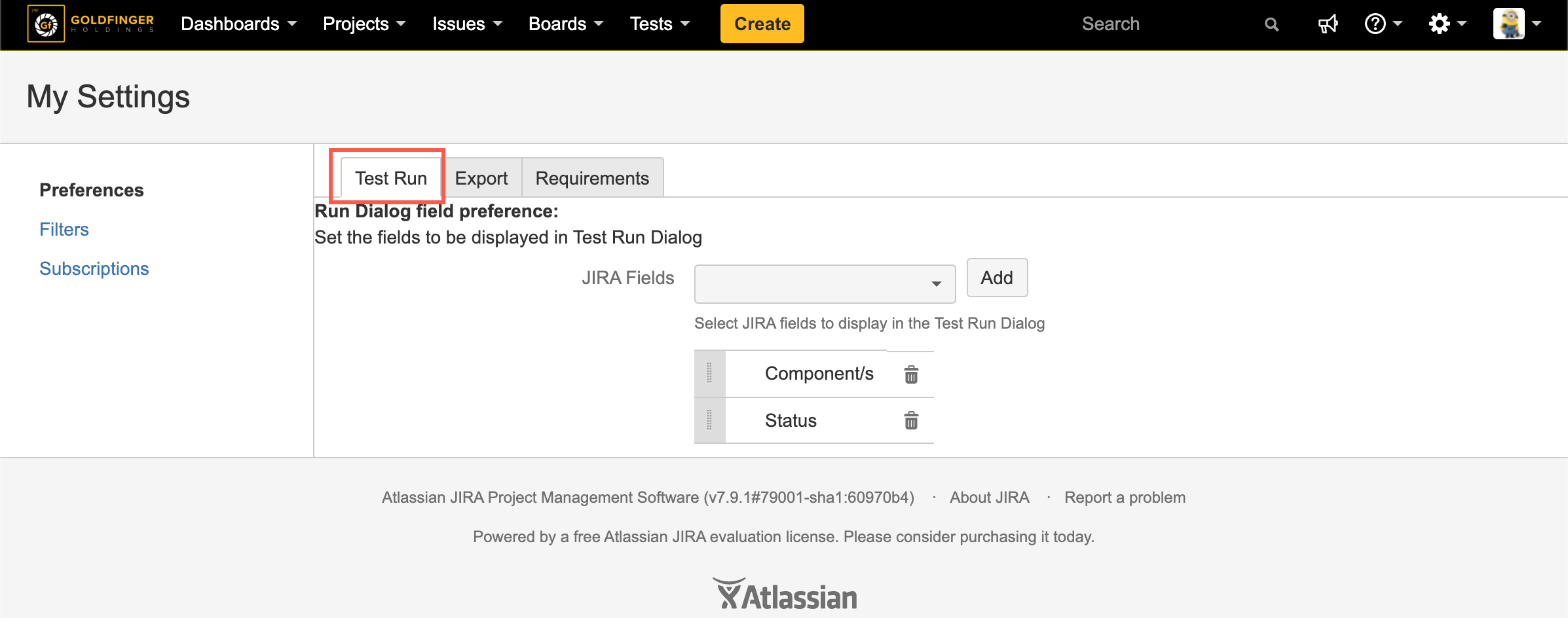
[Screenshot - My_Settings_Preference_Test_Run]
Export Preference
User can decide which fields are going to be exported during Requirement issue export and Test Case issue export.
To setup export preferences, following these steps:
-
Click "Tests->My Settings" from the main menu.
-
Click the "Preferences" link from the left panel.
-
Select "Export" tab.
-
Under "Export" tab:
-
Select "Test Case" from "Issue Type" dropdown, and then select the fields from "Jira Fields" (for Word or CSV) dropdown and click "Add" button.
-
Select "Requirement" from "Issue Type" dropdown, and then select the fields from "Jira Fields" (for Word or CSV) dropdown and click "Add" button.
-
Select "Baseline" from "Issue Type" dropdown, and then select the fields from "Jira Fields" (for Word or CSV) dropdown and click "Add" button.
-
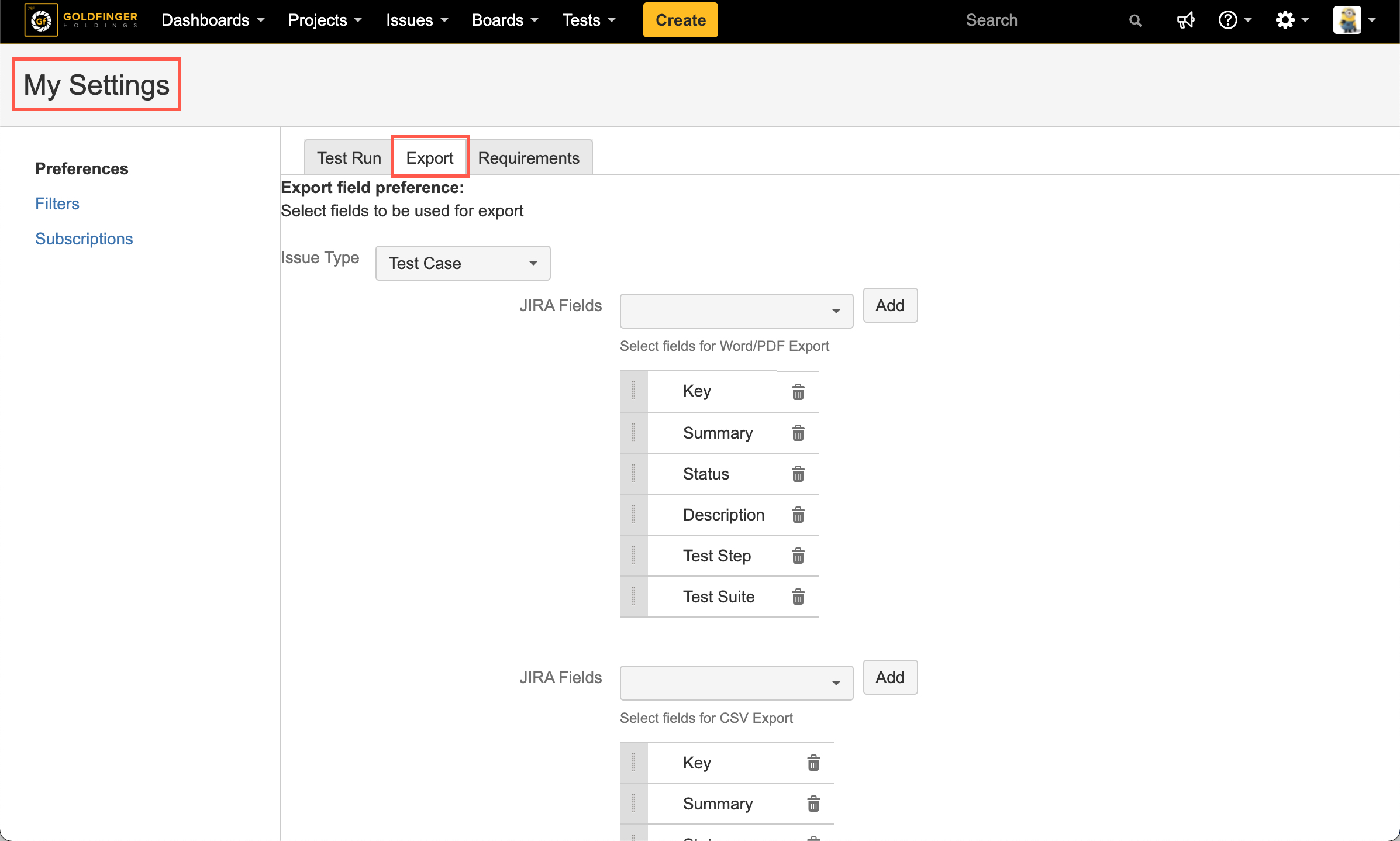
[Screenshot - My_Settings_Preference_Export]
Requirements Page Preference
It helps to hide/unhide the following fields which are available for Requirement issues in 'Requirements' page: Requirements Numbering, Components, Fix Versions, Sprints, Test Case Count and Test Plan Count.
Note: if user doesn't configure it from "My Settings" page, the Globe Preferences setting will take effect.
To setup 'Requirement Page' settings, following these steps:
-
Click "Tests->My Settings" from the main menu.
-
Click the "Preferences" link from the left panel.
-
Select "Requirements" tab.
-
Select/Deselect the fields those need to be displayed in 'Requirements' page.
-
Click "Save" button to save the configuration.
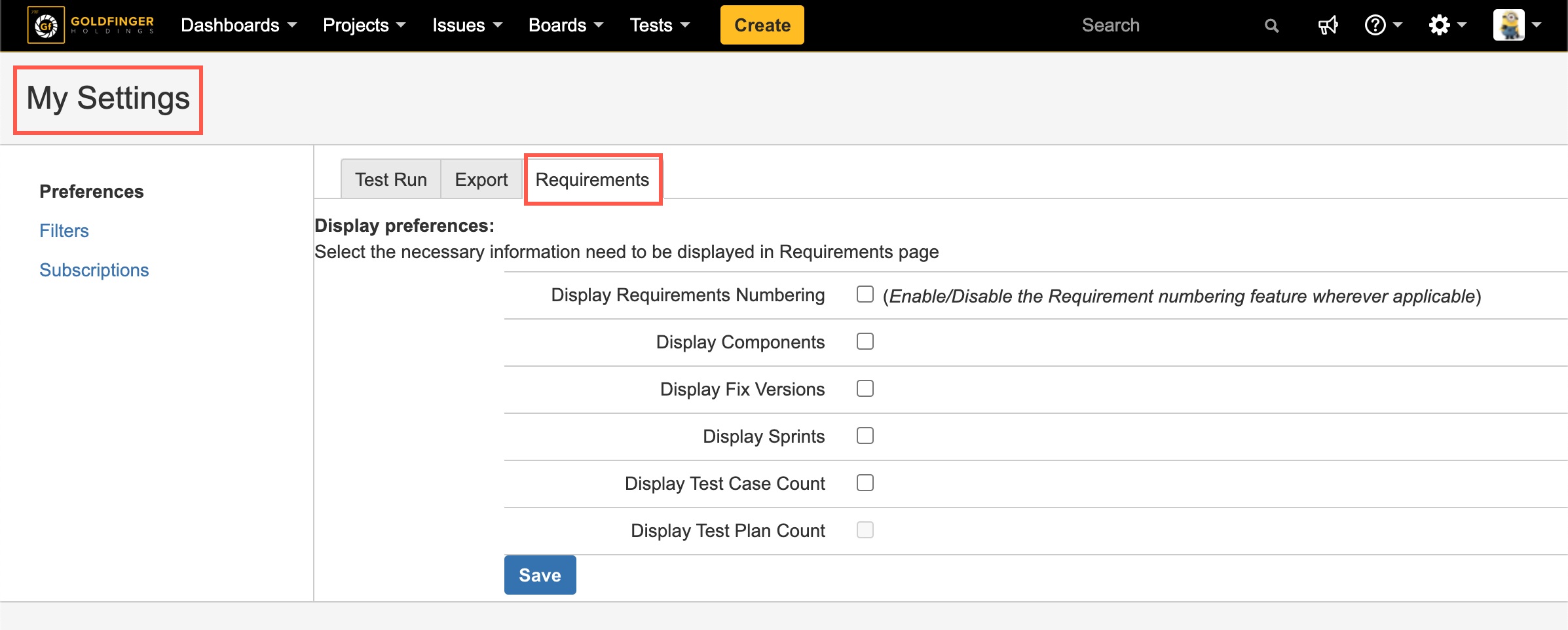
[Screenshot - My_Settings_Preference_Requirements]
Filters
It is the central page to list all TestRay filters by current user, these filters are from various TestRay pages and reports.
To view all TestRay filters created by current user, follow these steps:
-
Click "Tests->My Settings" from the main menu.
-
Click the "Filters" link from the left panel.
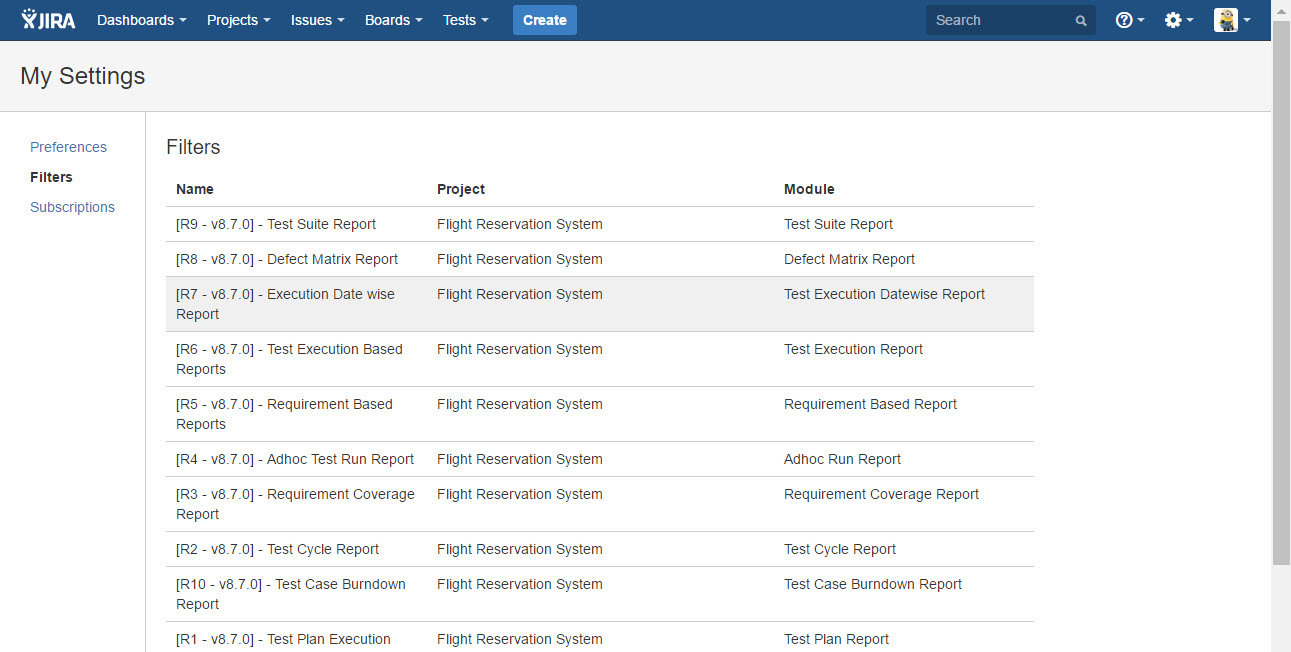
[Screenshot - UG870_My_Settings_Filters]
Subscriptions
User can create email subscriptions for reporting related filters, the "Recipients" specified in subscription will get email notification automatically at scheduled time.
To setup subscription, follow these steps:
-
Click "Tests->My Settings" from the main menu.
-
Click the "Subscription" link from the left panel.
-
Click "Subscribe" button.
-
From "Subscription" dialog, specify below values and click "Subscribe" button.
- Subscribe
- Name
- Schedule
- Time
- Recipients
- Active
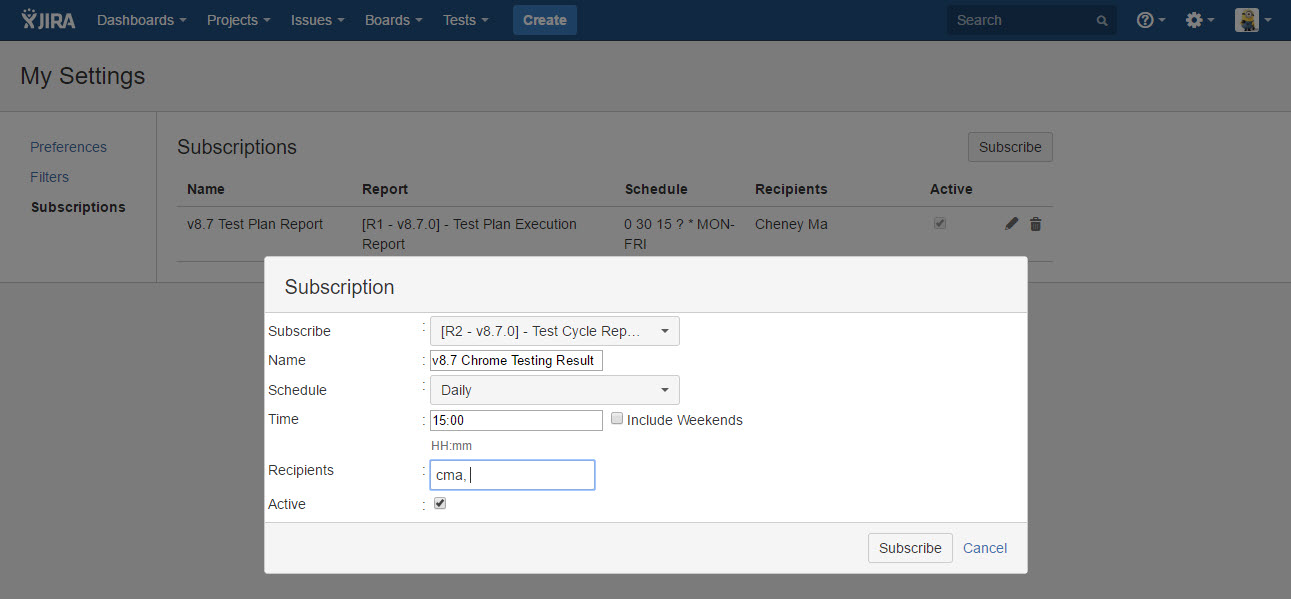
[Screenshot - UG870_My_Settings_Subscriptions]
RTM
RTM (Requirement Traceability Matrix) page allows user to set below two styles of your exported data from traceability matrix page.
-
Standard RTM: it is standard and simplified traceability matrix, everything is predefined by default.
-
Enhanced RTM: it allows user to customize the fields to be presented in exported file, and user can define the data style in exported matrix file.
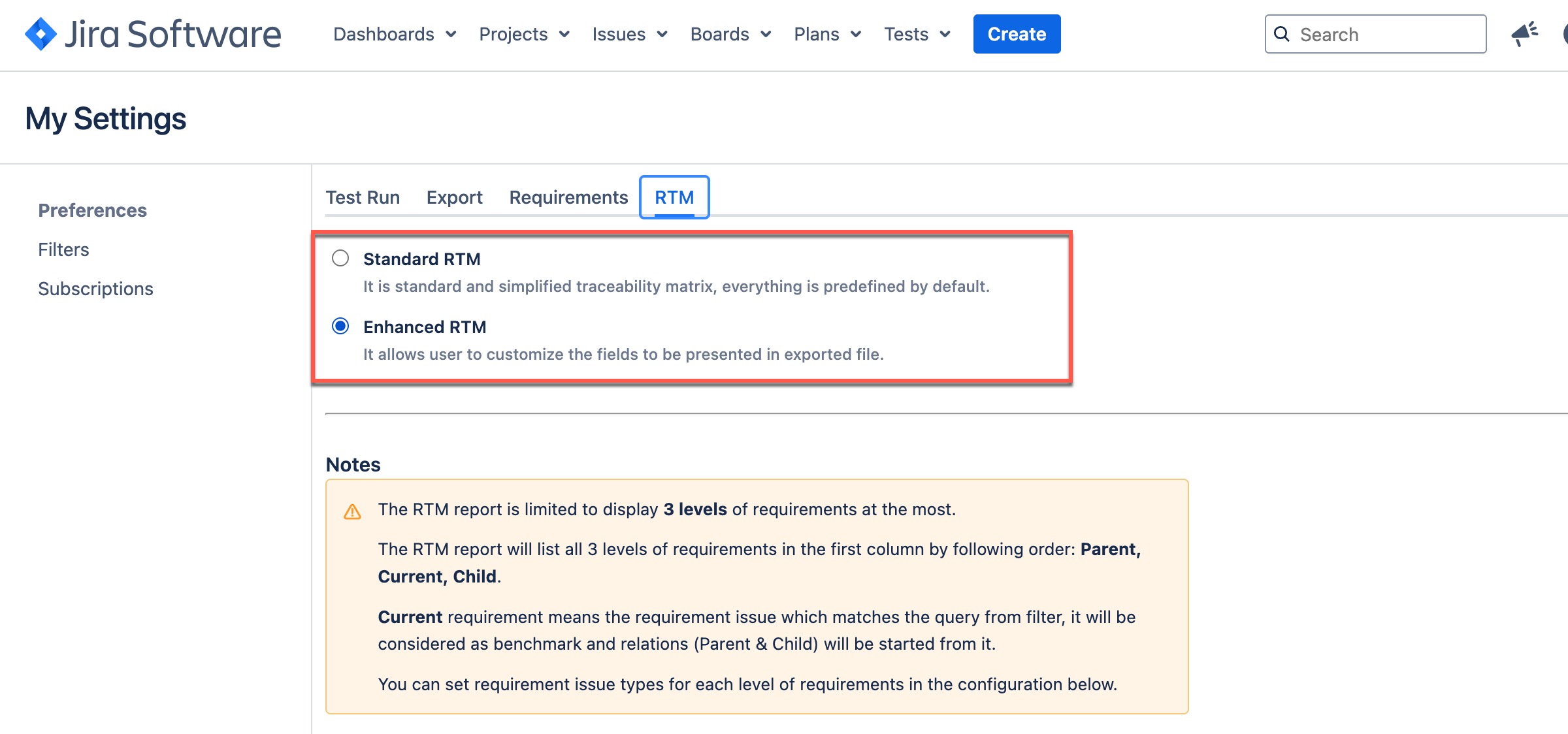
Standard RTM
It is the default set for all TestRay users.
All types of requirements are listed in a flat list in exported ‘Traceability Matrix’ file, requirement hierarchical information is not reflected in the file.
Fields/columns are dedicated and user is not allowed to change them.
Enhanced RTM
If you want to get more flexibility of exported traceability matrix file, you can choose this option. Please note that any changes done in this option will not impact the page, it only take effect on traceability export matrix file.
Export Configuration / Requirement Hierarchy Definition
It is to map requirement issue types to corresponding hierarchical position.
-
Parent Requirement (1st Level): those issue type/s are considered as parent/top level requirement, those requirement issues will be listed in left part of exported matrix file.
-
Current Requirement (2nd Level): those issue type/s are considered as child requirement from above, those requirement issues will be listed following parent requirement above.
-
Child Requirement (3rd Level): those issue type/s are considered as child requirement from above, those requirement issues will be listed following current requirement above.
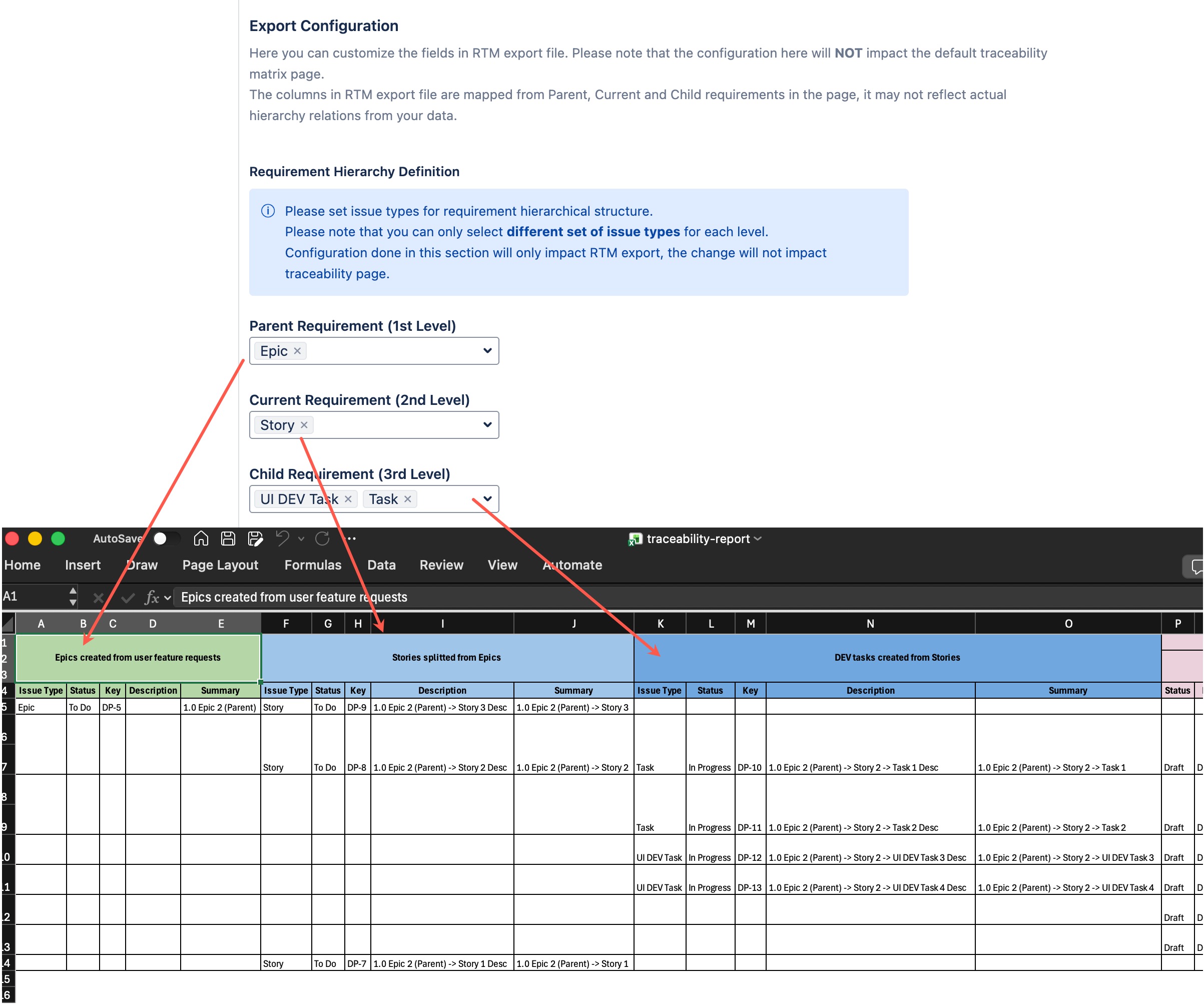
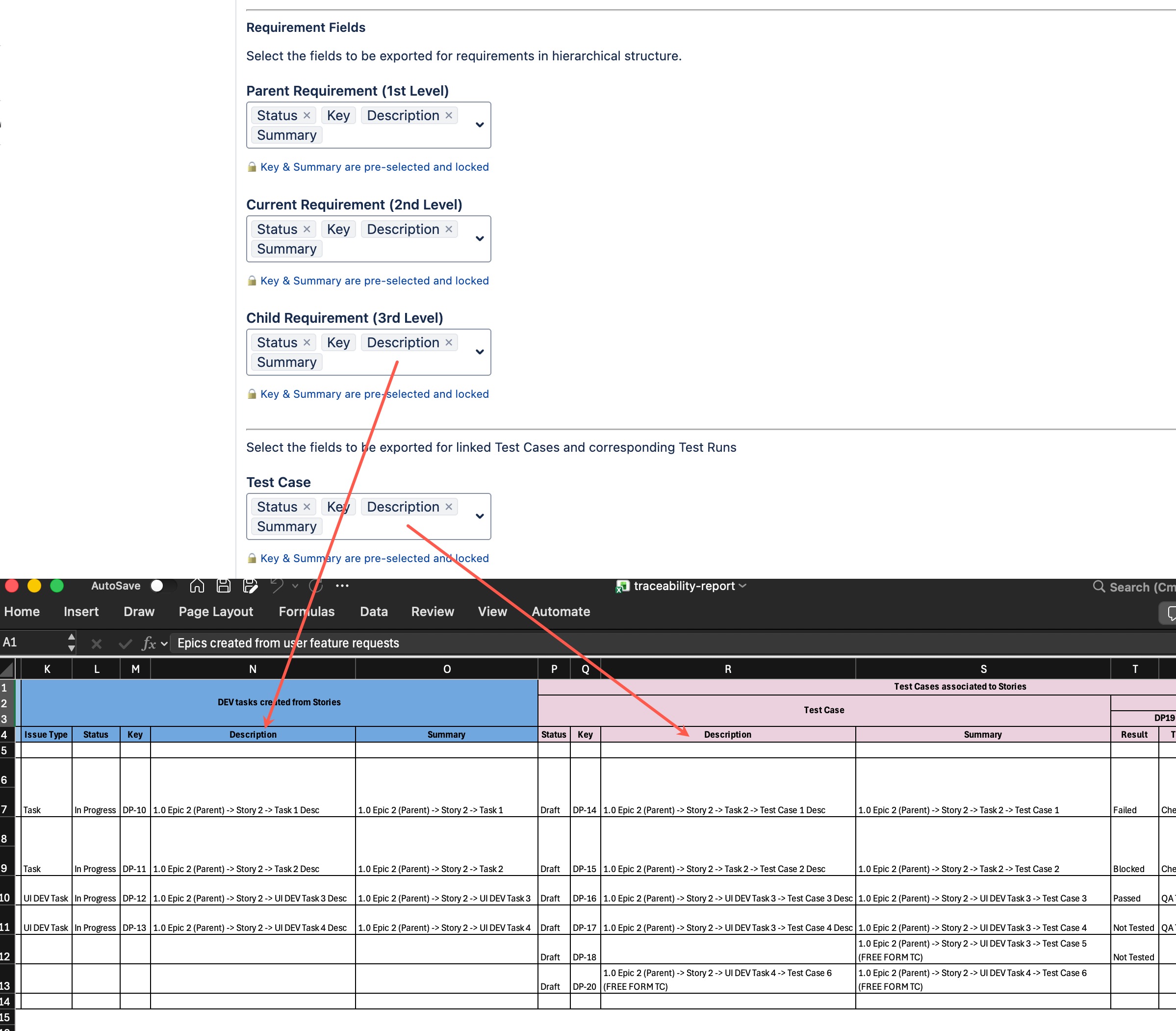
Export Configuration / Requirement Fields
Requirement issue in different hierarchical position can have its own group of fields/columns in exported traceability matrix file.
-
Parent Requirement (1st Level): selected fields will present in exported traceability matrix file for 1st level of requirement issues.
-
Current Requirement (2nd Level): selected fields will present in exported traceability matrix file for 2nd level of requirement issues.
-
Child Requirement (3rd Level): selected fields will present in exported traceability matrix file for 3rd level of requirement issues.
-
Test Case: selected fields will present in exported traceability matrix file for test case issues.
-
Test Run: selected fields will present in exported traceability matrix file for test runs.
-
Defects: selected fields will present in exported traceability matrix file for defects.
Export Configuration / Headers
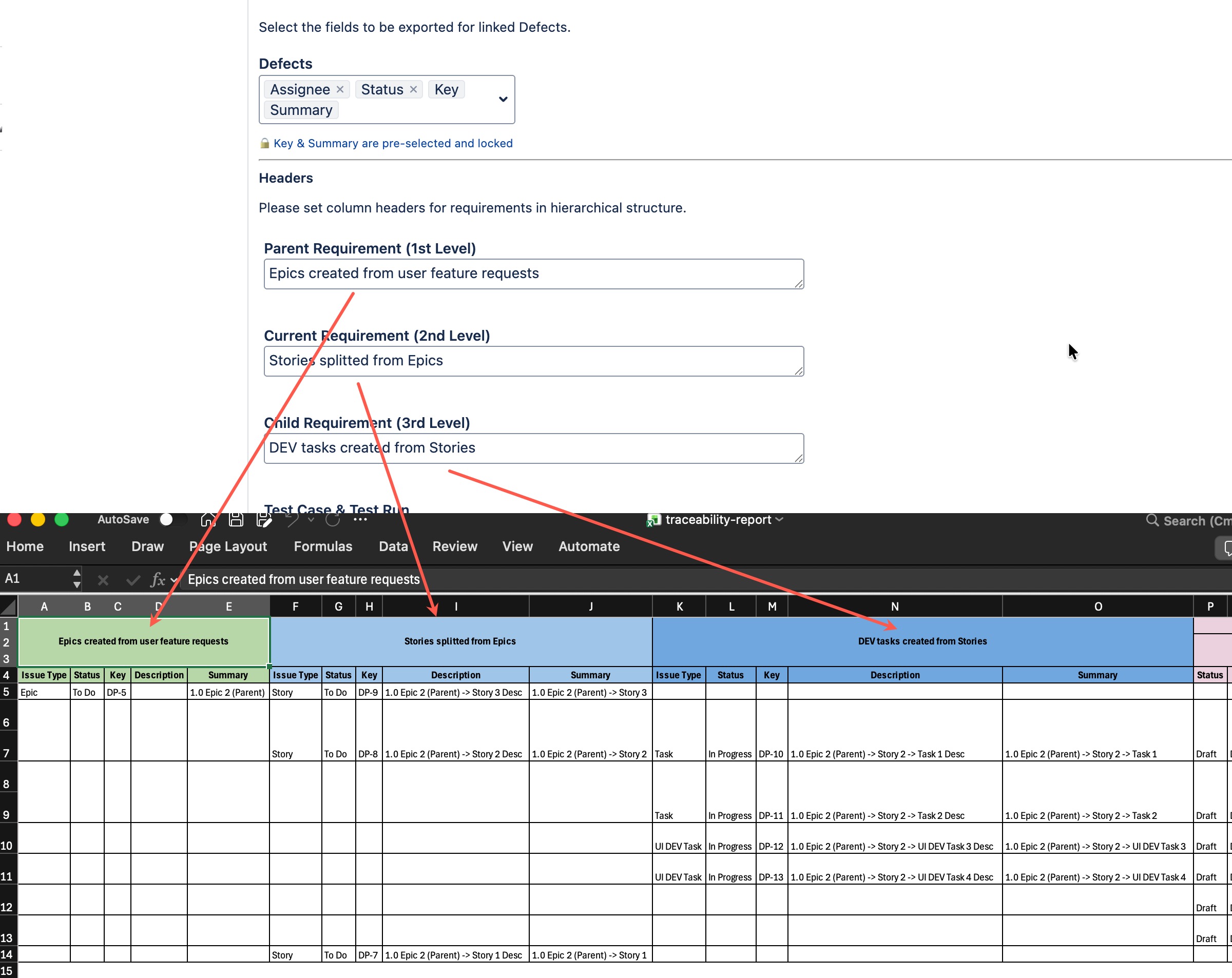
User is allowed to define column header to be displayed in exported traceability matrix file, it will produce user friendly traceability matrix file for different teams.
-
Parent Requirement (1st Level): header texts for 1st level of requirement issues.
-
Current Requirement (2nd Level): header texts for 2nd level of requirement issues.
-
Child Requirement (3rd Level): header texts for 3rd level of requirement issues.
-
Test Case: header texts for test case issues.
-
Test Run: header texts for test runs.
-
Defects: header texts for defect issues.